

How To Filter Your Email using Search Operators
by TeachThought Staff
It’s almost 2025, and I’m on what seems to be a never-ending question make email better.
As much as I ‘don’t like email,’ I don’t like phone calls either, but guess what? Sometimes, they’re necessary. It’s impressive that though email is older than the Internet itself, it remains the de facto form of modern communication in many industries. (The fact that my children pretend not to know how to use their email addresses leads me to believe that its days may be numbered.)
When computer engineer Ray Tomlinson sent the first email (to himself) in 1971, he likely never envisioned what it would one day become. Today, companies use email as a hub for project management. There are endless integrations with IFTT, cloud storage, social media, multimedia, and more. It’s also searchable, filterable, taggable, and otherwise almost endlessly customizable.
But exactly how to make those modifications isn’t always clear. It often involves third-party platforms that, at best, work, and at worst, don’t work and end up unsupported and vaporware. Search queries & operators you can use with Gmail
You can filter your Gmail search results using words or symbols called search operators. You can also combine operators to filter your results even more.
How To Use Gmail Search Terms And Operators
While you can set up your Gmail mailbox to display the results of queries like those below, the simplest way to use Gmail search terms and operators is once you know the search terms (what Gmail calls ‘search operators’).
- Open Gmail.
- In the search box at the top, click Show search options
.
- Enter your search criteria. If you want to check that your search worked correctly, click Search to see what emails appear.
- At the bottom of the search window, click Create filter.
- Choose what you’d like the filter to do.
- Click Create filter.
Use a particular message to create a filter
- Open Gmail.
- Check the checkbox next to the email you want.
- Click More.
- Click Filter messages like these.
- Enter your filter criteria.
- Click Create filter.
Edit or delete filters
- Open Gmail.
- At the top right, click Settings→See all settings.
- Click Filters and Blocked Addresses.
- Find the filter you’d like to change.
- Click Edit or Delete to remove the filter. If you’re editing the filter, click Continue when you’re done editing.
- Click Update filter or OK.
Export or import filters
If you have a backup of your filters, you can import them into Gmail or export them.
- Open Gmail.
- At the top right, click Settings → See all settings.
- Click Filters and Blocked Addresses.
- Check the box next to the filter.
Note: Only new messages will be affected when you create a filter to forward messages. Additionally, when someone replies to a message you’ve filtered, the reply will only be filtered if it meets the same search criteria.
You can read more on Google’s support page.
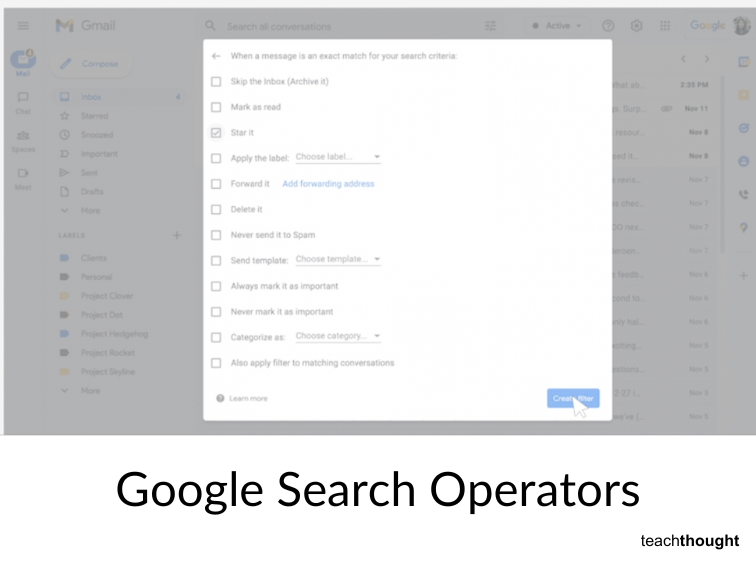
Tip: Once you search using search operators, you can use the results to set up a filter for these messages.
| What you can search by | Search operator & example |
|---|---|
| 1. Specify the sender | from:Example: from:amy |
| 2. Specify a recipient | to:Example: tso:david |
| 3. Words in the subject line | subject:Example: subject:dinner |
| 4. Messages that match multiple terms | OR or { }Example: from:amy OR from:david
Example: |
| 5. Remove messages from your results | -Example: dinner -movie |
| 6. Find messages with words near each other. Use the number to say how many words apart the words can be. Add quotes to find messages in which the word you put first stays first. | AROUNDExample: dinner AROUND 5 friday
Example: |
| 7. Messages that have a certain label | label:Example: label:friends |
| 8. Messages that have an attachment | has:attachmentExample: has:attachment |
| 9. Messages that have a Google Drive, Docs, Sheets, or Slides attachment or link | has:drivehas:document
Example: |
| 10. Messages that have a YouTube video | has:youtubeExample: has:youtube |
| 11. Messages from a mailing list | list:Example: list:[email protected] |
| 12. Attachments with a certain name or file type | filename:Example: filename:pdf
Example: |
| 13. Search for an exact word or phrase | " "Example: "dinner and movie tonight" |
| 14. Group multiple search terms together | ( )Example: subject:(dinner movie) |
| 15. Messages in any folder, including Spam and Trash | in:anywhereExample: in:anywhere movie |
| 16. Search for messages that are marked as important | is:importantlabel:important
Example: |
| 17. Starred, snoozed, unread, or read messages | is:starredis:snoozed
Example: |
| 18. Messages that include an icon of a certain color | has:yellow-starhas:blue-info
Example: |
| 19. Recipients in the cc or bcc field | cc:bcc:
Example: Note: You can’t find messages that you received on bcc. |
| 20. Search for messages sent during a certain time period | after:before:
Example: Example: |
| 21. Search for messages older or newer than a time period using d (day), m (month), and y (year) | older_than:newer_than:
Example: |
| 22. Chat messages | is:chatExample: is:chat movie |
| 23. Messages delivered to a certain email address | deliveredto:Example: deliveredto:[email protected] |
| 24. Messages in a certain category | category:Example: category:updates |
| 25. Messages larger than a certain size in bytes | size:Example: size:1000000 |
| Messages larger or smaller than a certain size in bytes | larger:smaller:
Example: |
| Results that match a word exactly | +Example: +unicorn |
| Messages with a certain message-id header | Rfc822msgid:Example: rfc822msgid:[email protected] |
| Messages that have or don’t have a label | has:userlabelshas:nouserlabels
Example: Note: Labels are only added to a message, and not an entire conversation. |
Note: When using numbers as part of your query, a space or a dash (-) will separate a number while a dot (.) will be a decimal. Example: 01.2047-100 is considered as two numbers. 01.2047 and 100.
How To Use Search Operators To Make Your Email Better